If you’ve ever shipped an interactive booth, you already know the pattern:
The LED wall looks amazing in rehearsals… and then show day happens.
A different router. A different Wi-Fi environment. A different iPad. A VIP who wants to “just tap once and it works.” And suddenly the “simple control tablet” becomes the biggest risk in the whole experience.
That’s why Unreal Engine Pixel Streaming has become a practical exhibition tool—not as a buzzword, but as a way to connect tablets – Unreal Engine – LED wall with fewer points of failure and a faster onboarding flow. Epic describes Pixel Streaming as a WebRTC-based system where Unreal renders on a host machine and streams frames to a browser while the browser sends input back.
We’ve used this pattern in real deployments where the only KPI that matters is: does it run for 10 hours a day, for 3–5 days, under pressure? If you want broader context on what typically breaks at trade fairs, start with our post on avoiding common pitfalls at trade fairs.
This article is the full field guide: what Pixel Streaming is, the best architecture for exhibitions, networking realities, scaling limits, and a show-day checklist that matches how booths actually operate.
What Pixel Streaming is (in exhibition terms)
Pixel Streaming is a way to run a single Unreal Engine application on a workstation/server and let users interact with it via a web browser, including on tablets using WebRTC.
In a booth, that unlocks three very specific wins:
-
No native apps (just a URL).
-
Centralized rendering (you control the GPU, drivers, and build).
-
Flexible roles (presenter tablet vs attendee viewer, different UI pages).
Epic’s own docs treat “local network streaming” as a common starting point, then expand to more complex setups when needed.

The exhibition problem Pixel Streaming actually solves
Most booth teams don’t need “cloud gaming.” They need:
1) A hero surface that never compromises
Your LED wall must stay on a direct, low-latency output chain.
2) A control layer that is frictionless
Tablets must connect fast, without installs, without “IT surprises.”
3) A system that survives networking chaos
Venue networks vary wildly. Pixel Streaming gives you a controlled pathway—if you design the network like part of the AV system.
This is especially relevant for digital twins and interactive city models, where you want cinematic quality on the wall but simple, repeatable navigation on a tablet.
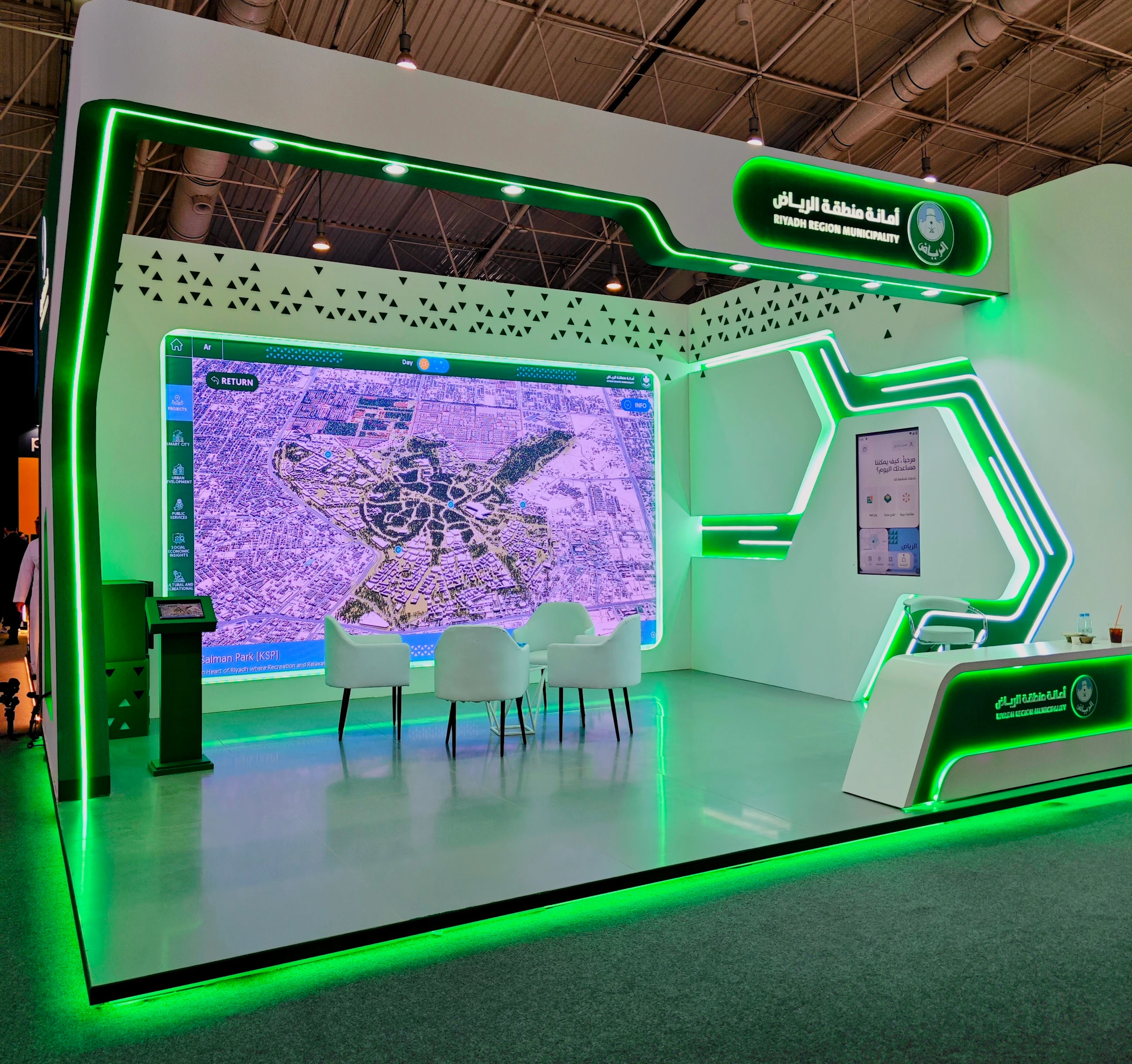
You can see how this played out in our Riyadh Digital Twin case study, where the experience is displayed on a large screen and controlled via tablet navigation, with Pixel Streaming referenced as part of the visual delivery approach.
The best default architecture for exhibitions
There are multiple Pixel Streaming architectures (LAN, cloud, hybrid). For most booths, the most reliable baseline is:
Local render for LED wall and Pixel Streaming for tablets
How it works
-
Unreal runs on a render workstation/media server.
-
The LED wall is fed directly from the GPU output (HDMI/DP – LED processor – wall).
-
Pixel Streaming runs alongside it to expose a browser endpoint for tablets on the same LAN.
Why this is the default:
-
The wall stays on the most reliable path (direct output).
-
Tablets become “soft endpoints” that can be swapped instantly.
-
You can keep everything on a dedicated local network.
Epic’s Pixel Streaming stack is built around this idea: the Unreal host encodes video, and browsers receive it while sending input back.
If you want to see “show floor thinking” in action: UI simplicity, bookmarks, reset behaviors, redundancy, our post Behind the Scenes: Activating the Riyadh Digital Twin gives a good operational view.
Pixel Streaming networking: LAN-first, then STUN/TURN when you must
If you only remember one rule, make it this:
Don’t build an exhibition system that depends on unknown Wi-Fi.
Epic’s Hosting and Networking Guide for Pixel Streaming explains why: on a local network, private addressing is usually fine; once you cross NATs, subnets, enterprise policies, or mobile networks, you may need STUN and TURN to establish reliable connectivity.
To keep this practical, think in two tiers:
Tier 1: Dedicated booth LAN (recommended)
-
Workstation on Ethernet.
-
Dedicated router/SSID for tablets.
-
No internet required for the core experience.
This is the “expo-hard” setup because it’s predictable.
Tier 2: Anything that crosses networks (use STUN/TURN)
STUN and TURN are standard WebRTC tools for NAT traversal and relaying. MDN’s overview of WebRTC protocols is a clean reference for how ICE, STUN, and TURN fit together.
Epic also highlights a real exhibition pain point: on mobile carrier networks and secured enterprise networks, you may have “no choice” but to use TURN because those networks can block direct WebRTC connections.
If you’re debugging “it works on LAN but not outside,” Epic’s community tutorial Where’s my stream? TURN server debugging for Pixel Streaming is worth bookmarking.
Presenter tablet vs attendee tablets: design roles, not devices
A common booth requirement is:
-
one staff member controls the experience (presenter),
-
multiple people watch (attendees).
Epic explicitly supports serving multiple player pages for different roles (presenter vs attendee), so you can expose different controls and permissions.
In exhibition UX, that’s a big deal:
-
Presenter page: full control (bookmarks, reset, POI selection, camera transitions).
-
Attendee page: view-only or limited interaction (language toggle, “request brochure,” etc.).
This matches how real booths operate: you want the movement on the LED wall to look confident and camera-ready not like someone is learning controls for the first time.
Don’t “stream a desktop.” Stream a purpose-built tablet UI.
If the tablet UI looks like a remote desktop, you’ve already lost.
The winning pattern is:
-
Unreal stays cinematic (LED wall),
-
tablet UI stays simple (big buttons, curated routes),
-
interaction is repeatable (staff can run a consistent story).
Unreal supports web-to-engine interaction patterns, and Epic provides documentation around Pixel Streaming’s player pages and infrastructure to customize frontends for your experience. See the Pixel Streaming Infrastructure documentation and the official repo PixelStreamingInfrastructure on GitHub for what’s intended to be customized and extended.
If you want the “Chameleon lens” on this, connect it to our broader philosophy:
-
Smart Interactive Solutions is where control layers live (touch, tablet workflows, interaction logic).
-
Smart Audiovisual Solutions is where the LED & media chain is treated as part of one coherent system.
That split matters, because Pixel Streaming is not “an IT feature.” It’s a bridge between AV and interaction.
Ports and firewall: the unglamorous part that breaks booths
Pixel Streaming uses a few default ports that you need to treat like any other AV integration requirement.
Epic lists default ports (including 80, 443, and 8888) in the Pixel Streaming Reference.
Exhibition takeaway:
-
If you run on a dedicated LAN, you control this.
-
If you rely on venue IT, you must document it early (and test it on-site).
If you’re writing an RFP or technical requirements sheet, this is exactly the kind of detail that prevents “surprise downtime.”
Performance: the knobs that matter (without over-optimizing)
Pixel Streaming performance is a balance of:
-
encoder choice,
-
bitrate,
-
resolution and framerate,
-
and network stability.
Epic’s reference includes a practical note: at 1080p, quality tends to converge once bitrate rises above about 20 Mbps.
It also highlights AV1 as a strong choice where available, because it can deliver higher quality at lower bitrates (useful when Wi-Fi is the bottleneck).
Exhibition framing:
-
If tablets are on a clean LAN, prioritize responsiveness and stability over “perfect image settings.”
-
If you must operate in noisy RF conditions, codec efficiency and bitrate discipline become more important.
Scaling: what happens when “more viewers” becomes a requirement
If your booth needs many concurrent viewers, you’ll eventually hit limits often not in Unreal, but in encoding capacity.
Epic’s networking guide explains the role of an SFU (Selective Forwarding Unit) and simulcast: Unreal can produce multiple quality layers, and the SFU routes the best stream to each peer based on conditions.
Two important caveats for real deployments:
1) SFU maturity
Epic describes SFU in the context of Pixel Streaming infrastructure; depending on your version and requirements, treat advanced scaling as something you validate carefully (not something you assume).
2) NVENC session limits
Epic notes practical GPU limits around encoding sessions in Pixel Streaming contexts, and NVIDIA’s own NVENC application note states a limit of 8 concurrent sessions per system on non-qualified cards.
Exhibition takeaway:
-
If you want “lots of viewers,” plan the encoding budget and test it with real devices.
-
In many booths, it’s smarter to keep tablets as controllers (few) rather than viewers (many) unless you architect explicitly for broadcast-scale.
Matchmaking and what changed in UE 5.5+
If you’ve seen older Pixel Streaming deployments that use a matchmaker, note this:
Epic says the Matchmaker is deprecated from Unreal Engine 5.5 onward, because it wasn’t a dynamic scaling foundation.
For most exhibitions, that’s not a problem—booths usually want reliability more than elastic scaling. But if your plan includes remote post-event demos or multi-instance load balancing, it affects how you approach architecture.
Expo-hardening checklist (without turning your booth into a data center)
Here’s what we’ve found matters most when Pixel Streaming is part of a booth system:
Start with a dedicated booth LAN.
A small router you control, a clean SSID, and an Ethernet line to the workstation.
Design the tablet experience like an operator tool.
Minimal UI. Big controls. Presets. Reset. Bookmarks. Repeatable routes. This aligns with what we describe in our booth operations writing, and it’s consistent with the “avoid pitfalls” mindset.
Plan a fallback mode.
If tablets fail, the booth must still run:
-
operator keyboard/mouse,
-
wired control station,
-
attract loop mode.
Treat ports as requirements, not “nice to have.”
Use Epic’s Pixel Streaming Reference as your baseline and document what your venue must allow.
If you must go “across networks,” plan TURN early.
Don’t discover on-site that enterprise Wi-Fi blocks WebRTC. Epic explicitly calls out secured networks as a case where TURN may be required.
When you should not use Pixel Streaming in a booth
Pixel Streaming is powerful, but it’s not mandatory.
Skip it when:
-
you only need one local touchscreen directly connected to the workstation,
-
the venue network is locked down and you cannot run a dedicated LAN or configure TURN,
-
your UI requirements are so specialized that a native tablet app is the only sane path (rare, but it happens).
A clean rule: If Pixel Streaming removes friction, use it. If it adds risk, go local.
Proof in real deployments: why we keep using this pattern
Pixel Streaming is not theoretical for us.
In our Jeddah Central Development Company Digital Twin project, we explicitly reference Pixel Streaming as a way to keep performance seamless across mobile devices and large LED screens, which is exactly the exhibition requirement this article addresses.
And in our Riyadh Digital Twin case study, the experience is framed around a large display and intuitive tablet navigation, with Pixel Streaming referenced as part of achieving top-quality visuals.
If you want to dig deeper into how we think about “interactive vs immersive vs experiential” (and how that affects booth architecture choices), this post is a useful companion: What’s the Difference Between Interactive, Immersive, and Experiential Solutions?.
Final thought: Pixel Streaming is a control layer, not a gimmick
In exhibitions, the job isn’t “stream Unreal.”
The job is to deliver a coherent venue experience: LED wall visuals, tablet control, staff workflow, visitor flow, and resilience under pressure. Pixel Streaming earns its place when it helps you remove friction (no installs), keep Unreal centralized, and make the tablet experience feel like a designed tool—not a workaround.
If you’re preparing an RFP, deciding between local-only vs streamed control, or you want us to sanity-check your show-day architecture, reach out via our contact page.
FAQ: Pixel Streaming for Exhibitions
-
What is Unreal Engine Pixel Streaming, in simple terms?
It’s a way to run your Unreal experience on a powerful workstation/server and stream it to a tablet or laptop browser (video out, touch/mouse input back) using WebRTC. -
Why use Pixel Streaming in exhibitions instead of installing a native tablet app?
Because it removes friction: no installs, no App Store delays, easy device swapping, and you keep one controlled Unreal build and hardware stack. -
What’s the most reliable setup for an LED wall + tablets?
Render Unreal locally and feed the LED wall directly from the GPU, then use Pixel Streaming on the same LAN so tablets connect via a local URL as controllers. -
Do we need internet for Pixel Streaming in a booth?
Not necessarily. For most show-floor deployments, a dedicated local network is enough. Internet becomes relevant mainly for remote access/support or when you can’t control the network. -
When do we need STUN/TURN servers?
When tablets/clients connect across NAT, corporate networks, or mobile networks—especially where direct WebRTC connections are blocked. TURN is the “relay fallback” when direct connections fail. -
How do you design the tablet UI so it feels exhibition-ready?
Avoid “remote desktop” controls. Use a purpose-built, big-button interface with presets, reset, language switching, and a staff-friendly “presenter” role separate from attendee views. -
How many concurrent viewers can one workstation support?
It depends on GPU encoding capacity, resolution/bitrate, and whether you’re using SFU/simulcast. Consumer GPUs often hit practical encoder session limits, so plan and test concurrency early.